Integrations
Configure clinic, laboratory, scanner, finance, manufacturing, communication, and marketplace integrations.
Integration settings show connection status and provider-specific configuration. Use sandbox or test provider accounts in stage.
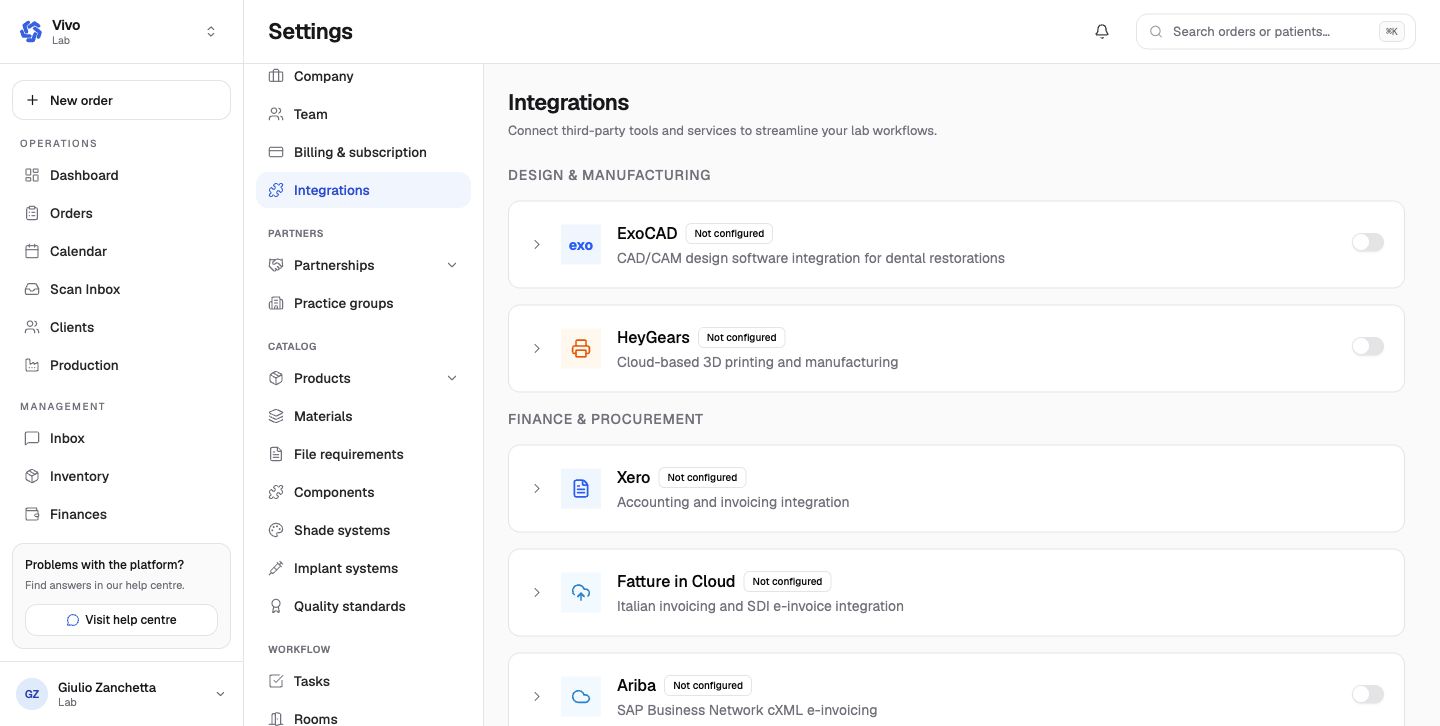
Laboratory providers
| Area | Providers | Purpose |
|---|---|---|
| Design and manufacturing | ExoCAD, HeyGears | CAD/CAM reconstruction/material mapping and cloud manufacturing |
| Finance and procurement | Xero, Fatture in Cloud, Ariba | Accounting, Italian SDI e-invoicing, and cXML procurement |
| Communication | Twilio | Laboratory-owned SMS and WhatsApp messaging |
| Marketplace | Bite-Finder | Occlusion correction and bite analysis; send an order’s two jaw scans and receive the corrected result |
| Coming soon | Microsoft 365 | Calendar and email integration |
Provider configuration can include OAuth authorization, account/company selection, product or material mappings, tax/payment mappings, automation switches, sync logs, test actions, and credentials. A provider that fails to load should show an error state rather than being assumed disconnected.
Clinic providers
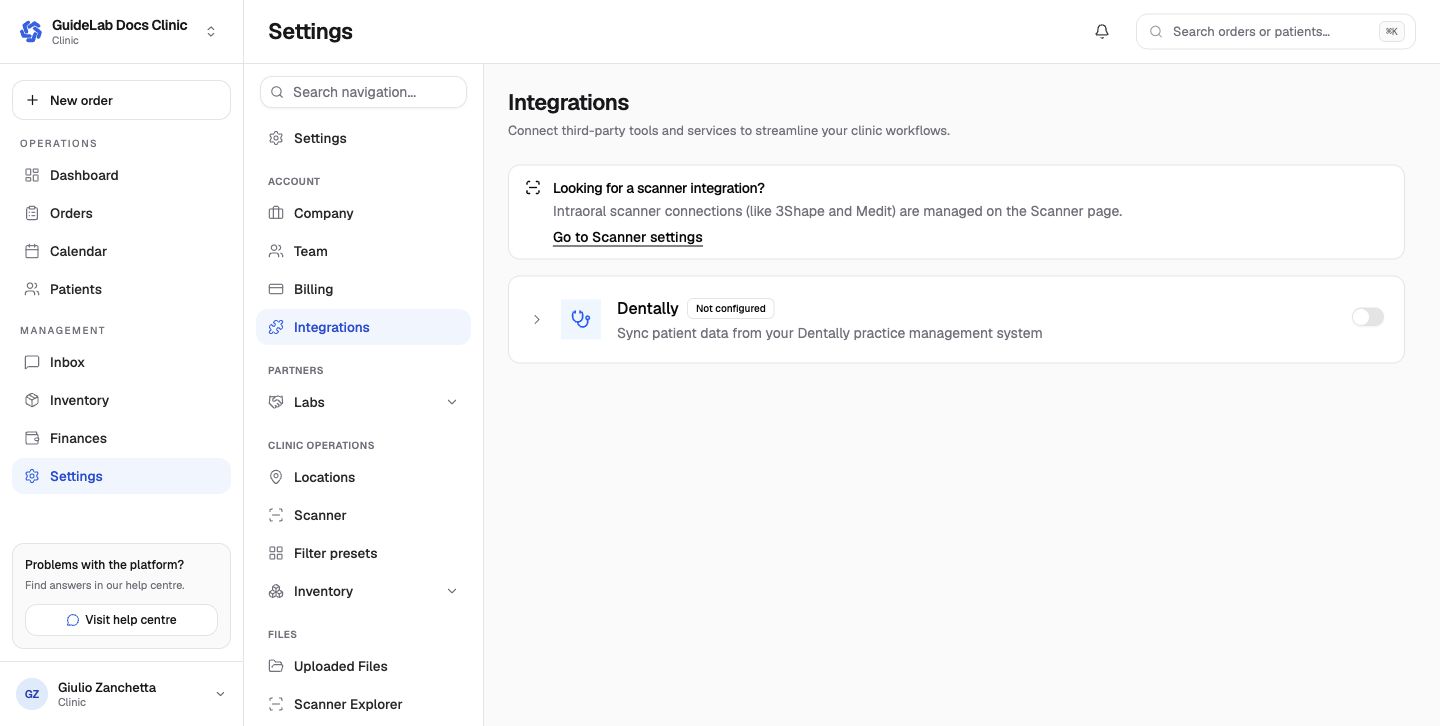
The clinic integration directory contains Dentally for patient-data sync. Scanner providers such as 3Shape, Medit, and iTero are managed under the dedicated Scanner page.
Connection checklist
- confirm the active organization and provider environment;
- authorize with the narrowest provider permissions;
- select the exact provider account or company;
- configure mappings and automation explicitly;
- run the available test or limited sync;
- inspect the sync log and one resulting GuideLab record;
- document how to disconnect or rotate credentials.
Never paste provider secrets into documentation, screenshots, issue logs, or ordinary notes. Use the application's credential controls and repository secret workflow.