Clinic overview
Understand the clinic dashboard, navigation, calendar, and setup entry points.
The clinic workspace keeps patient records, lab connections, orders, messages, inventory, and finances together. Use New order for the main clinical workflow and Settings for organization-level configuration.
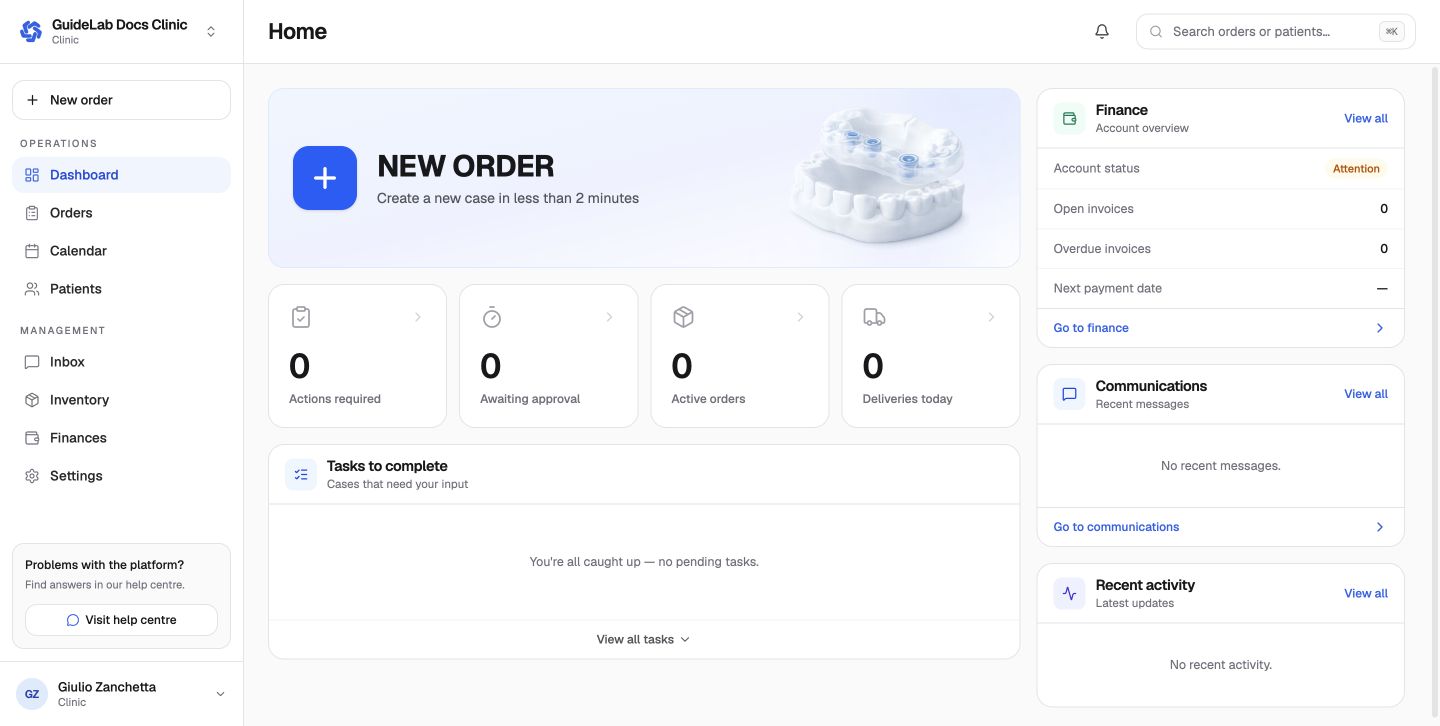
Main areas
- Dashboard summarizes current work and activity.
- Orders contains drafts and submitted cases.
- Calendar displays dated clinic work.
- Patients stores the patient record used by orders.
- Inbox holds conversations with connected laboratories.
- Inventory and Finances support clinic operations.
- Settings holds organization, team, location, billing, and integration configuration.
What the dashboard tells you
The clinic dashboard is an exception-oriented summary rather than the full record. Use it to spot order activity and financial attention items, then open the relevant module for the underlying rows. Counts and amounts are scoped to the active clinic.
The top search finds orders or patients without leaving the current workspace. The notification bell shows events for the signed-in user; notification channel preferences live in Personal account settings.
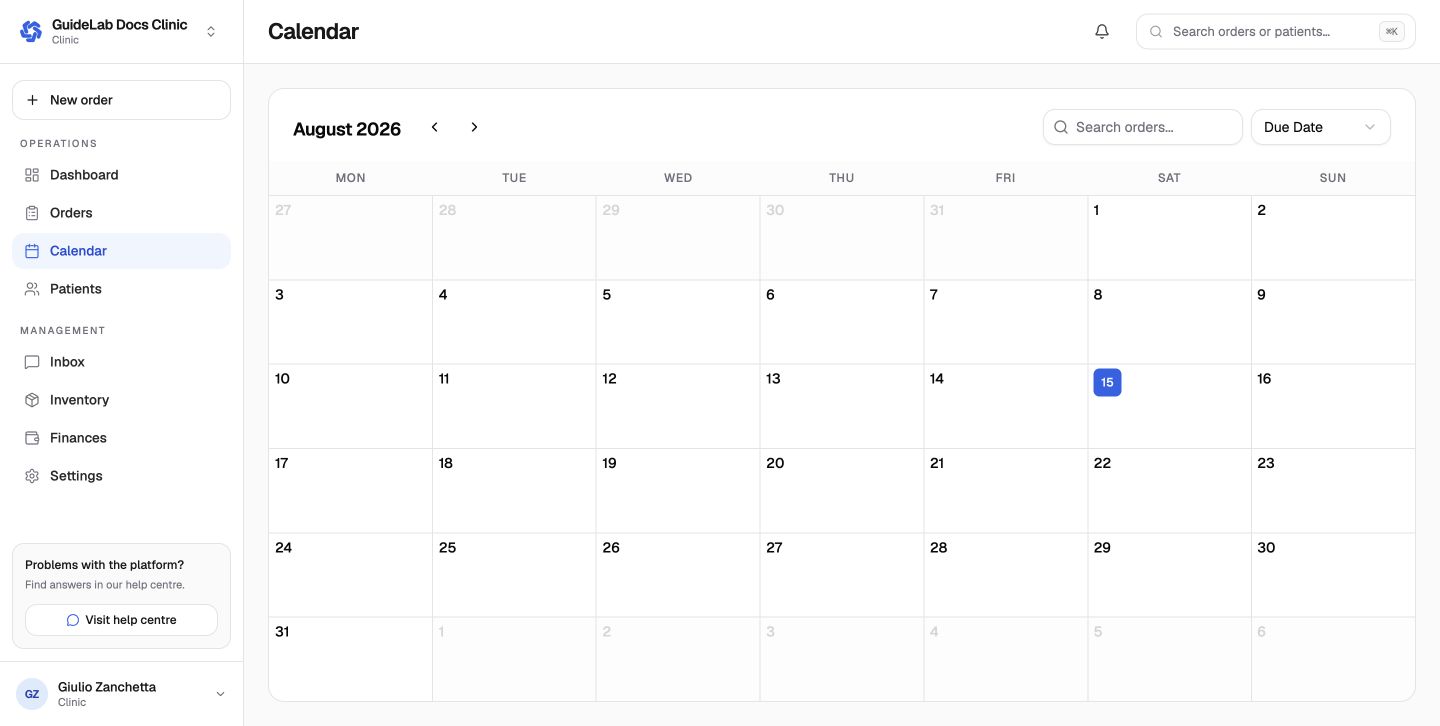
Use the organization switcher to confirm you are in the correct clinic before creating patient or order data.
Recommended daily sequence
- review the dashboard for exceptions;
- check Orders for drafts, approvals, holds, and due work;
- review the Calendar for date-specific workload;
- answer new Inbox conversations;
- check inventory or unpaid finance items that need action.
Next: Add and manage patients.