Labs and orders
Connect a clinic to a lab, prepare the first order, and manage drafts.
A clinic must be connected to a laboratory before it can send a case. The lab accepts the partnership request, after which the clinic can grant patient access and prepare an order.
Find a laboratory
Open Settings, go to the lab connection area, and search for the laboratory by name. Review the result before sending a partnership request.
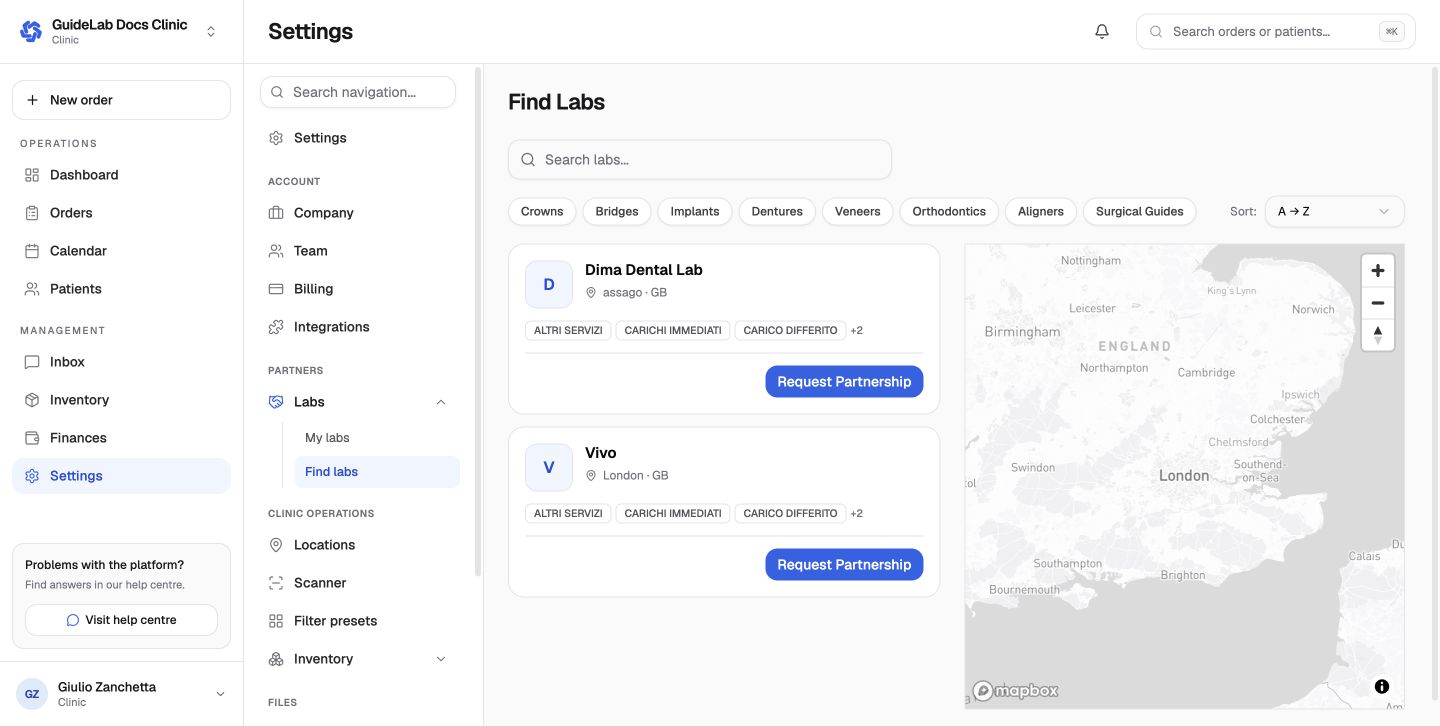
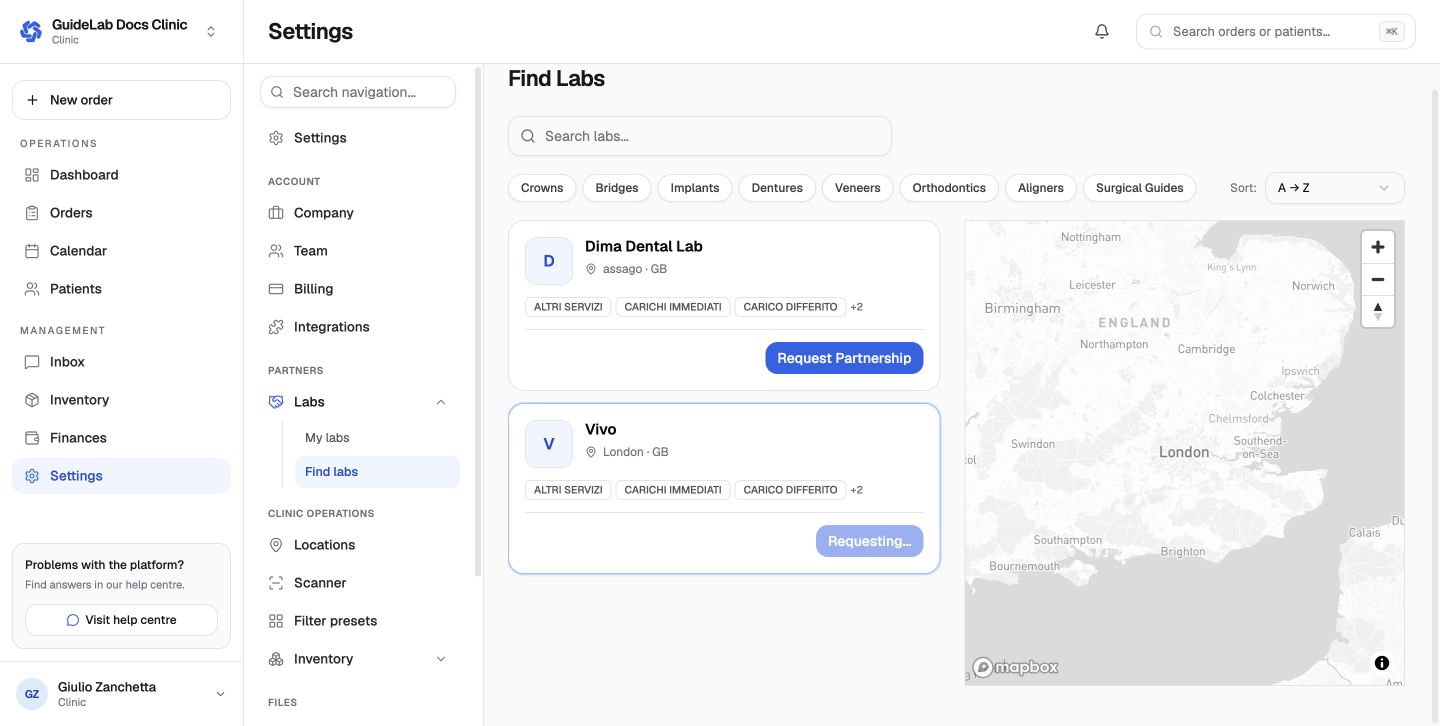
Send and confirm the partnership
Send the request. It remains pending until the laboratory accepts it. Once accepted, the clinic can share the relevant patient record with that lab.
Prepare the order
Click New order and complete the wizard:
- select the laboratory and reference doctor;
- select an existing patient or create a new patient;
- choose the work type, catalog products, options, materials, and notes;
- attach required files, reuse patient files, or import from a connected scanner;
- review the case, requested date, instructions, and authorization, and choose the Shipping option;
- complete payment when the partnership policy requires advance payment.
Shipping: when the laboratory charges for shipping, the review step lists each shipping type with its price for your address and the order's weight.
- Choose one to send the order.
- Add insurance when the type offers it.
- To send the work together with an open order of yours that is due no earlier, choose Ship with that order. You then pay only what the combined weight adds.
The shipping price is fixed when you send or pay for the order. It is never discounted and appears as its own line on the invoice.
Resume a draft
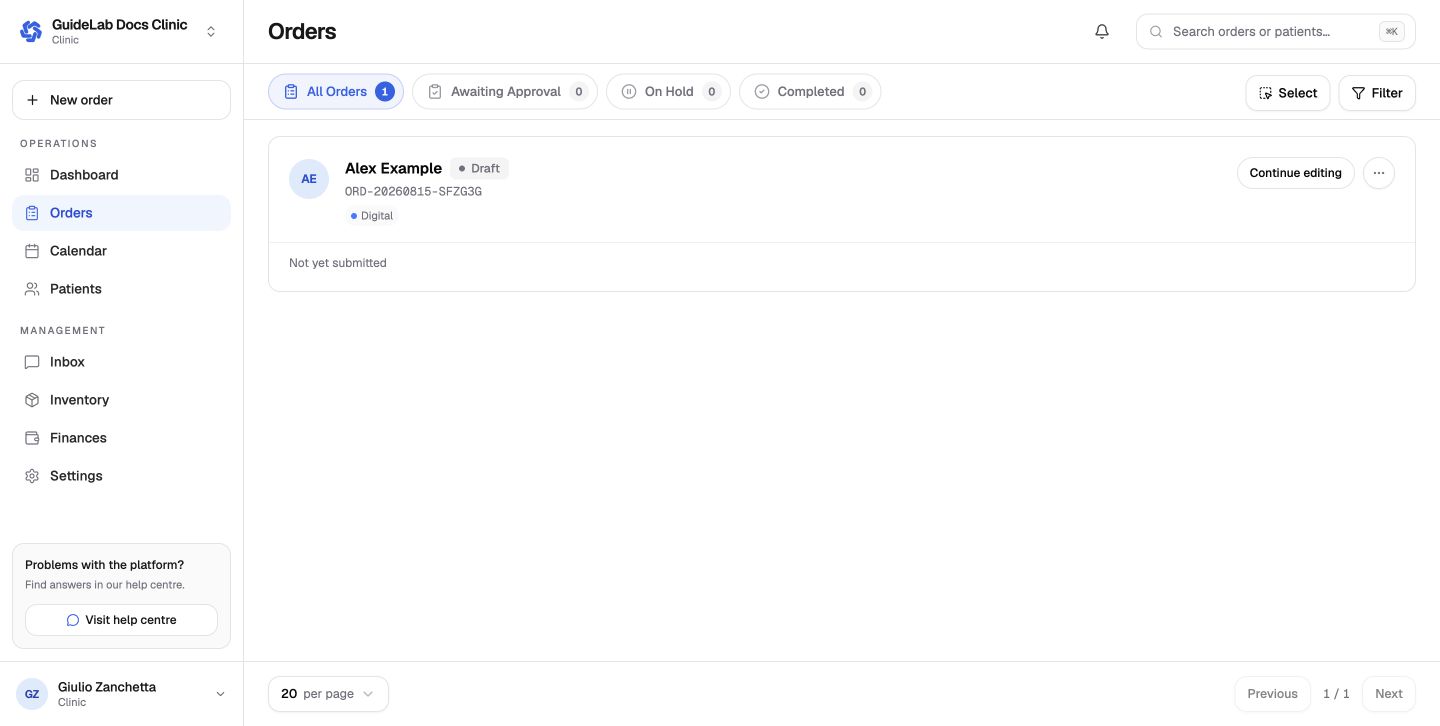
GuideLab saves unfinished work as a draft. Open Orders and choose Continue editing to resume it.
File and due-date behavior
The selected products determine which files are required. Unsupported uploads are rejected; DICOM groups can be bundled during upload. Some products may be started immediately, while others remain on hold until required information is available. The requested completion date is evaluated against the lab's working calendar, cutoff time, and production lead time.
Clinic order states
| State | Meaning |
|---|---|
| Draft | Not submitted; editable from the clinic order list |
| Submitted | Sent to the lab and awaiting acceptance or approval |
| In Progress | Accepted and moving through production |
| On Hold | Work is paused pending information, files, or another resolution |
| Completed | Laboratory work is complete |
| Cancelled | Closed without completion |
Use filters and saved presets to find cases by status, partner, doctor, patient, file state, due date, and other available criteria.
Reference doctor required
The first step requires an eligible reference doctor. If the selector is empty, invite the clinician to the clinic and assign the required clinical role before continuing.