GuidesClinic guide
Patients
Add a patient, review the patient list, and open the patient record.
Every clinic order starts with a patient. Patient records can contain contact details, date of birth, an external identifier, notes, and linked order history.
Patient fields
| Field | Purpose |
|---|---|
| First and last name | Required identity used in searches and orders |
| Date of birth | Helps distinguish people with similar names |
| Email and phone | Contact information; store only when permitted |
| External ID | Link back to the clinic's practice-management system |
| Notes | Concise operational context that belongs on the patient record |
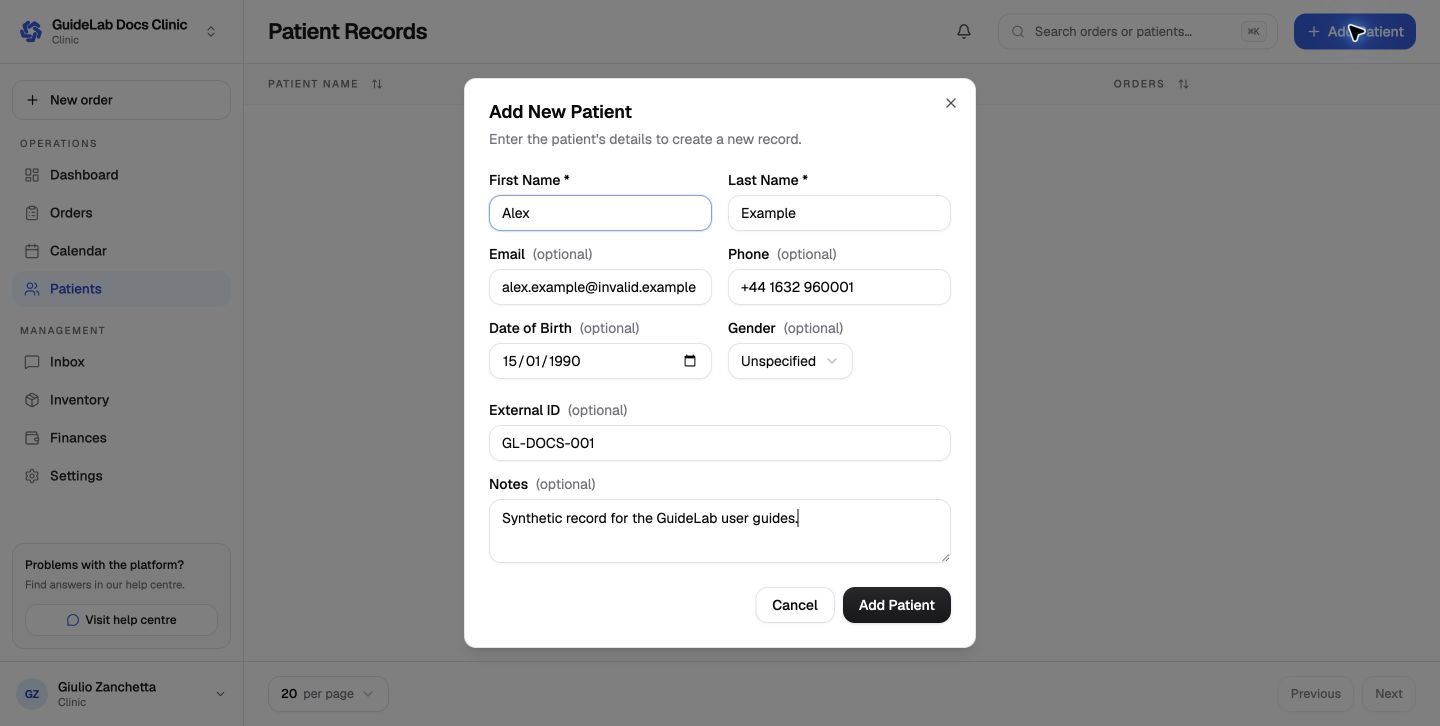
Enter the patient details
Complete the required name fields, then add only the contact and reference data your team is permitted to store. Use the external ID to match a record from another practice system.
Save and review
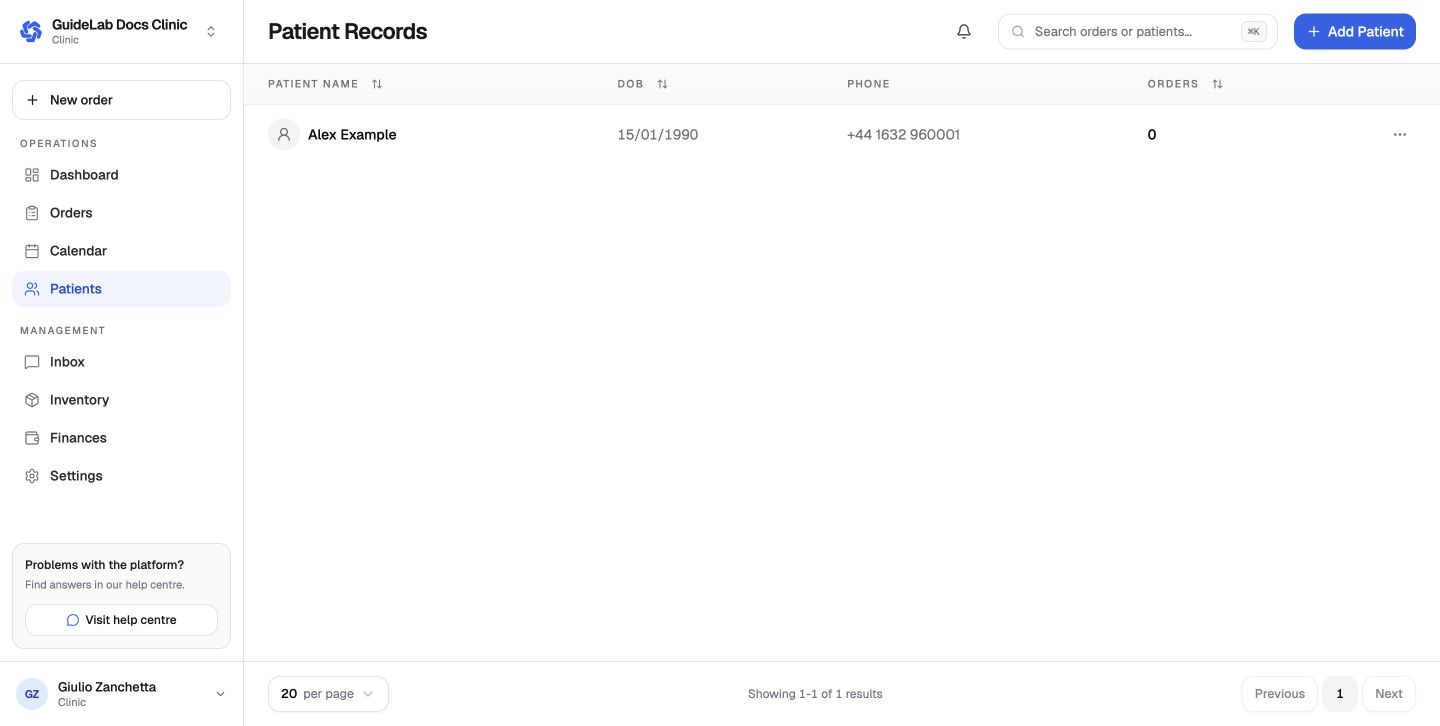
The new patient appears in Patient Records. Use the row menu for available actions or click the patient name to open the record.
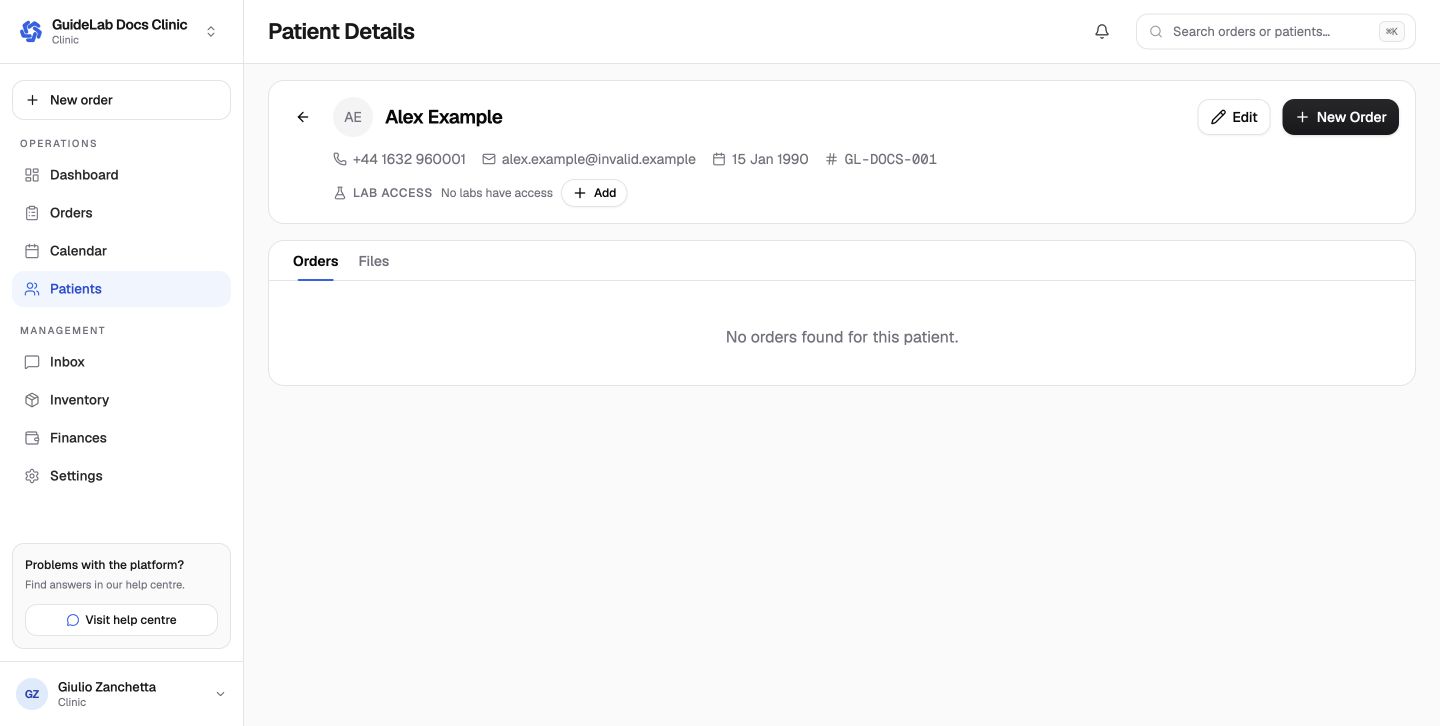
The patient page is the best place to confirm identity and review order history before starting another case.
Files, privacy, and lab access
- Patient files can be reused in later orders from the file step.
- The order wizard can hide patient details from the lab when that option is available and appropriate.
- A connected lab sees patient information only after the clinic grants access.
- Do not create a duplicate patient when an external ID or existing record can be matched.
- Use the archive workflow instead of deleting records that must remain linked to clinical or financial history.