Orders and statuses
Create, approve, filter, progress, hold, complete, cancel, and ship laboratory orders.
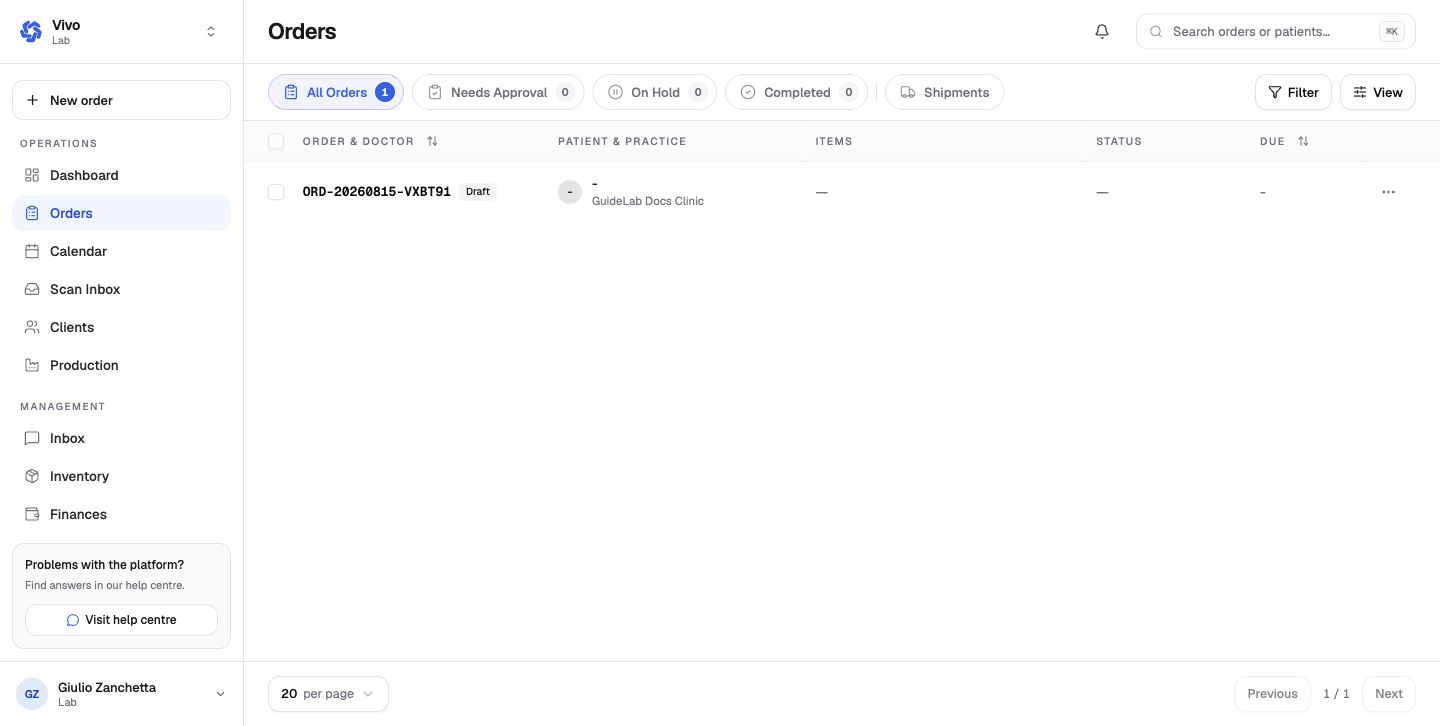
The order register is the laboratory's source for case status, clinic, contents, and due date. Drafts remain editable until the required order information is complete.
Work with orders
- Use the status tabs to focus on cases needing approval, on hold, or completed.
- Use Filter for narrower case searches and View to change the table presentation.
- Open an order number to see or continue the case.
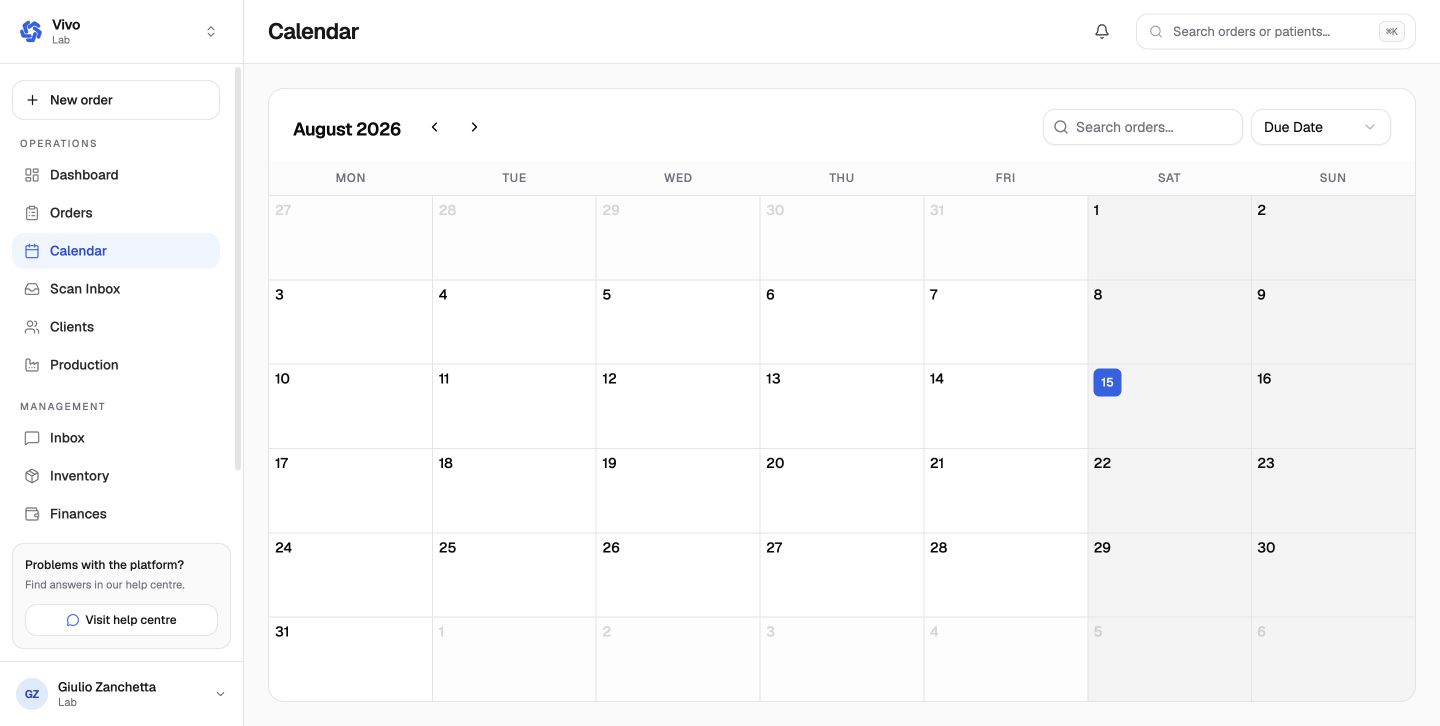
- Use the calendar to review scheduled work by date.
Create an order from the laboratory
The lab-side wizard uses the same core sequence as a clinic order, but the lab first selects the practice and reference doctor. It then selects or creates the patient, adds products, collects files and notes, reviews the case, and saves or submits the order. A lab draft must be persisted before it can advance beyond the first step.
Status lifecycle
| Status | Meaning | Valid next actions |
|---|---|---|
| Draft | Incomplete and not submitted | Submit or cancel |
| Submitted | Received and awaiting lab approval | Accept into progress, put on hold, or cancel |
| In Progress | Accepted and moving through production | Complete, put on hold, or cancel |
| On Hold | Paused with a recorded reason | Resume to submitted/in-progress or cancel |
| Completed | Finished | Reopen to in-progress when correction is required |
| Cancelled | Terminal cancellation | No further status transition |
Needs Approval is the submitted-order work queue. On Hold is the blocked queue. Completed contains finished cases. Shipments tracks packing, ready, in-transit, exception, delivered, returned, and cancelled shipment states separately from the order status.
Order detail
The detail page combines:
- header, status actions, due date, practice, doctor, and patient;
- product items and their configured options;
- production phase and task progress;
- required and submitted files;
- hold, remake, and quality-control records;
- communications, status history, and task history;
- document, sticker, shipment, and finance actions when applicable.
Shipping and shipments
Under the items, the order's shipping line shows:
- the clinic's shipping type and price, and the orders it ships with;
- for your laboratory only: the weight and zone it was priced at, and a warning when products have no weight or the order carries no shipping charge.
Edit shipping changes the type, insurance or combined shipment while the order is unpaid and not invoiced. Only this order's charge is recalculated. Packing orders together physically never changes a price.
Ship opens the order's shipment, or creates one for the order and those it ships with. The same button appears on each row of the shipping room.
- Create shipment: the unshipped quantities and the clinic's address are filled in.
- Start packing, then Pack all.
- Mark ready.
- For a carrier shipment, Add tracking label with the carrier and tracking number.
- Dispatch, which needs a passing quality check on every order.
- Mark delivered, with the recipient's name.