GuidesInventory
Suppliers and items
Add an inventory supplier and create a stocked item.
Create the supplier before any item that references it. This keeps purchase orders, contact details, and stock reporting connected.
Add a supplier
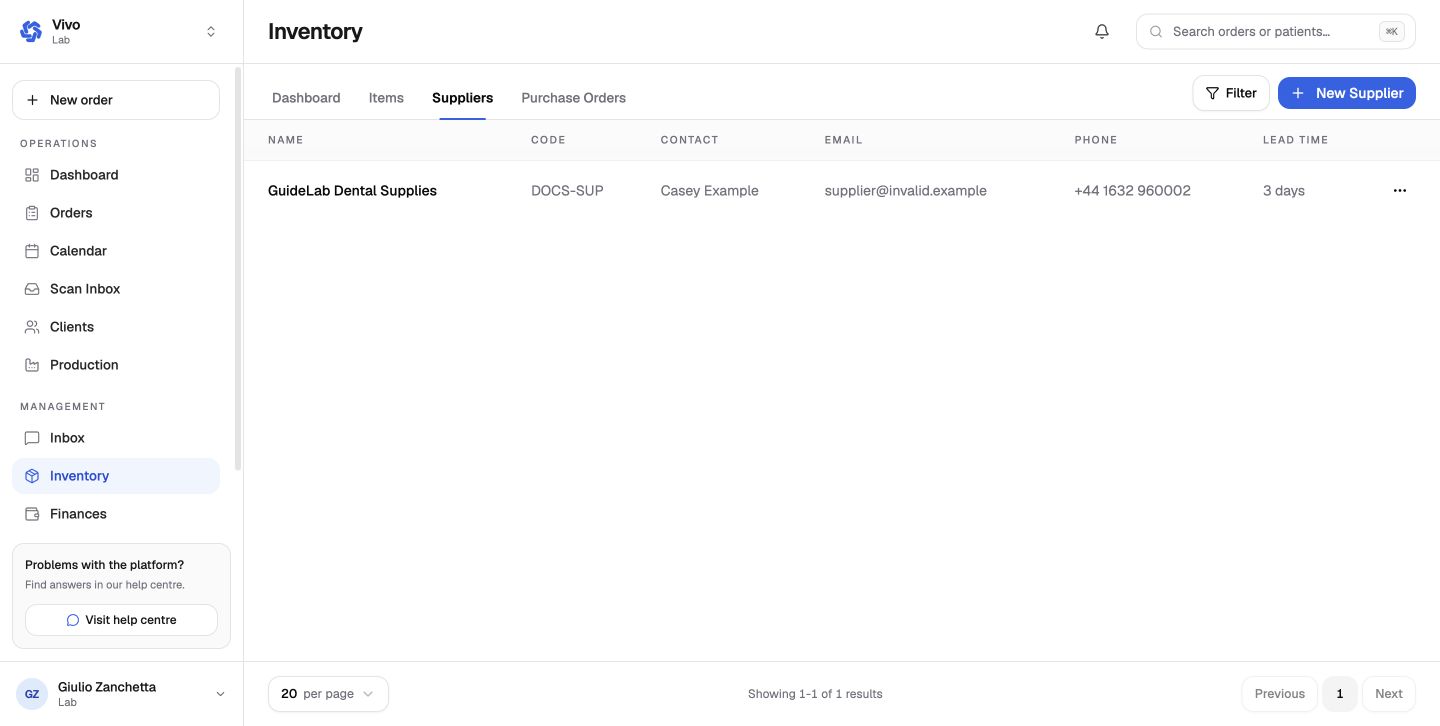
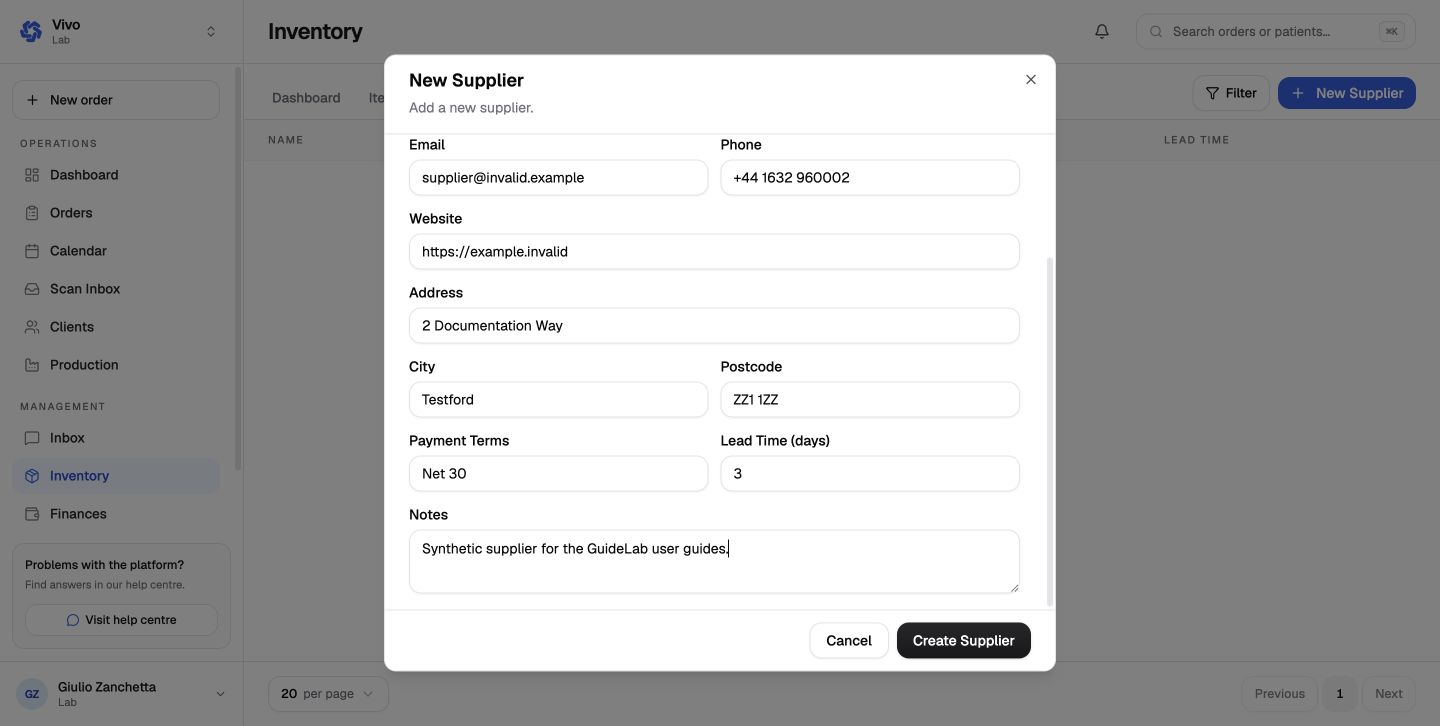
Open Inventory → Suppliers and click Add Supplier. Enter the supplier name, code, permitted contact details, website, address, and notes.
Add an item
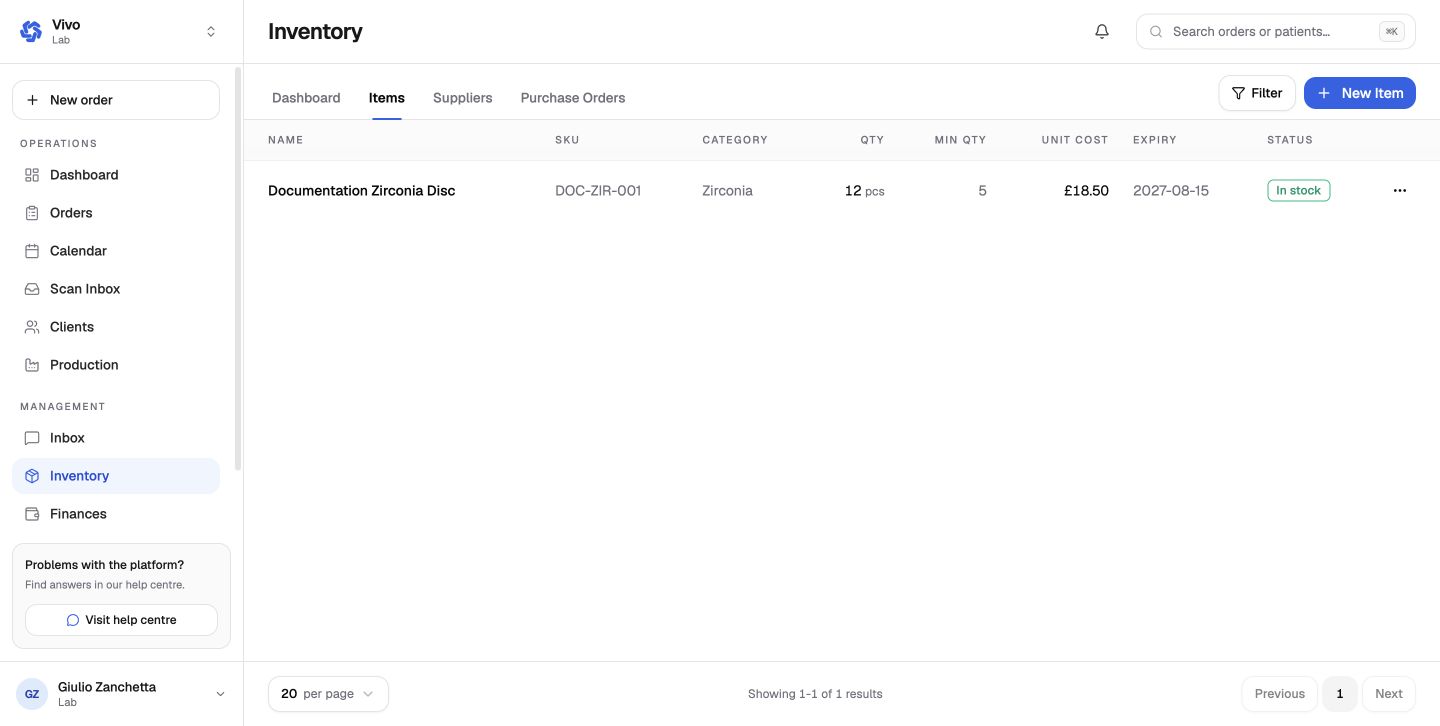
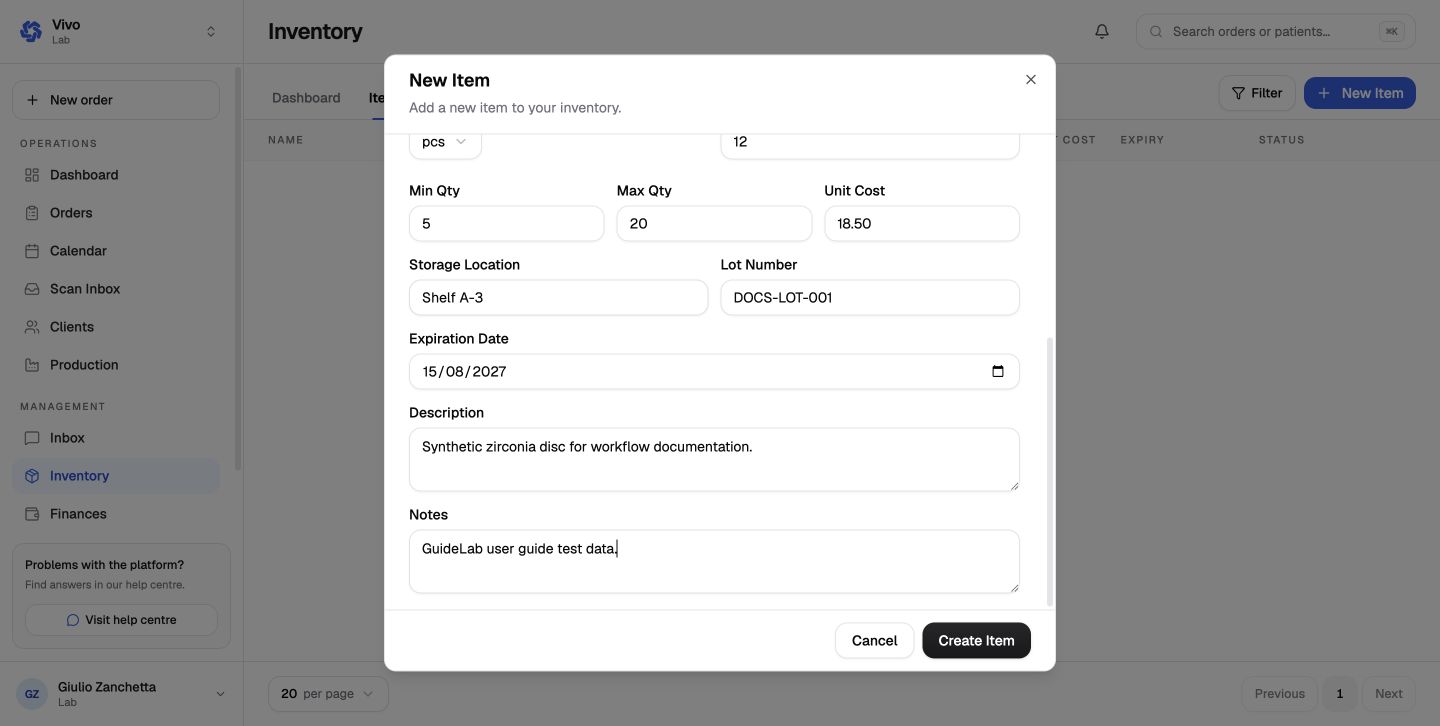
Open Items, click Add Item, and provide the name, SKU, category, supplier, quantity, stock limits, unit cost, and storage location. Add lot and expiry data when it applies.
Review stock health
Return to the dashboard and confirm that quantity, valuation, category, and attention status are correct.
Use unique SKUs and supplier codes so the same material is not created twice.
Next: Purchase orders.